Your cities, always in view.
An always-on-top world clock for Windows 11 and 10
If you work with people in other time zones, you check the time somewhere else dozens of times a day. Open World Clock keeps those cities on screen, pinned above your other windows, so the answer is already there when you need it. It’s free, open source, works offline, and has no ads or telemetry.
Get it from Microsoft Store Other downloads Download installer Portable exe
What “always on top” means for a world clock
Most clocks on Windows only show up when you go looking for them. The taskbar clock needs a hover or a click, and the Clock app is a regular window that disappears behind whatever you open next. An always-on-top window stays above every other app until you unpin it.
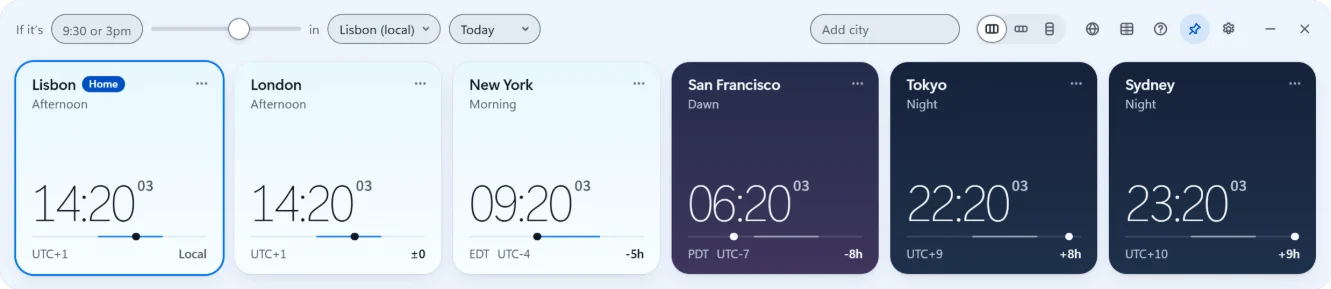
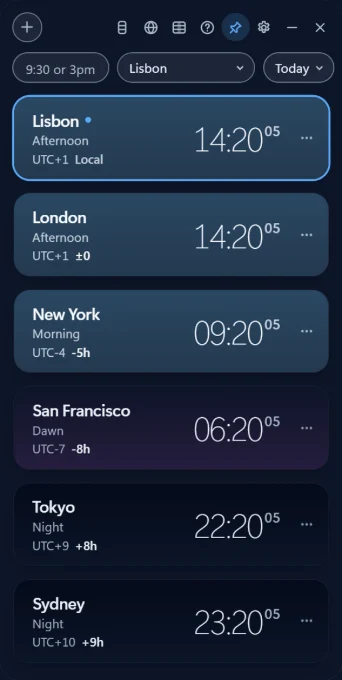
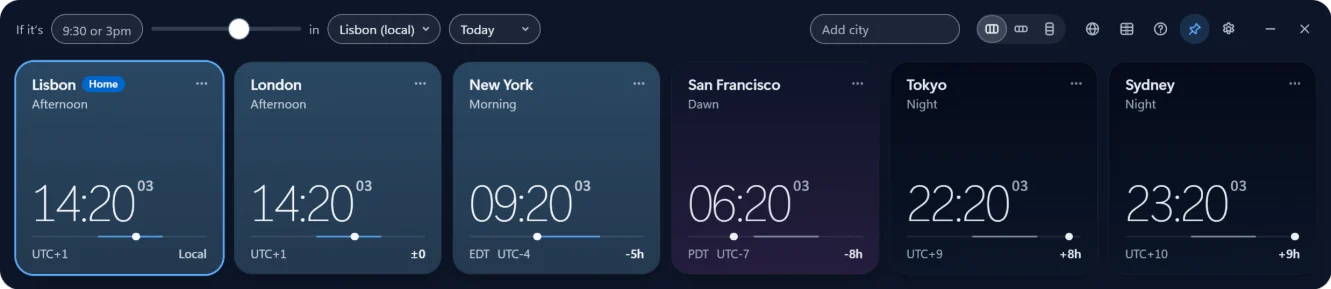
For a world clock, that turns a lookup into a glance. You don’t open an app or a browser tab. You look at the corner of the screen and see that it’s 08:40 in San Francisco, 16:40 in Lisbon, and past midnight in Tokyo. Open World Clock goes a step further: each city card follows that city’s real sunrise and sunset, so you can tell who is awake from the color of the card before you even read the numbers.
How to pin Open World Clock above other windows
- Install it. Get Open World Clock from the Microsoft Store, with winget, or with the installer or portable exe from the download page. It runs on Windows 10 and 11.
- Add your cities. Search by city, country, abbreviation (EST, CET), or UTC offset (UTC-5, +3). Accents are optional, so “Sao Paulo” finds São Paulo. Rename any card, for example “Ana (Berlin)”.
- Select the pin in the top bar. The window now stays above every other window.
- Pick a layout. Switch between strip, compact, and vertical from the top bar. Each layout remembers its own size.
- Make it fit. Set the background opacity so the clock sits lightly over your work. On Windows 11 it uses the native acrylic backdrop and works with Snap. Press Ctrl + Plus or Ctrl + Minus to zoom between 100% and 200%.
- Unpin it whenever you like. Select the pin again and it behaves like a normal window.
The clock reopens where you left it, on any monitor. A tray icon keeps it handy, and you can turn on launch at login so it’s there every morning.
Three layouts for three kinds of desks
- Strip: a horizontal row of city cards, good along the top or bottom edge of a large monitor.
- Compact: a small bar that takes the least space, for laptops and crowded screens.
- Vertical: a column that fits the side of a wide or ultrawide screen.
Taskbar clocks vs. the Windows Clock app vs. Open World Clock
Windows already gives you two ways to see other time zones, and both are good at their own jobs.
Swipe to see the other columns
| Question | Taskbar additional clocks | Windows Clock app | Open World Clock |
|---|---|---|---|
| How many time zones | Up to two extra | Many | Any IANA time zone, as many cards as you like |
| Visible without clicking | No, they appear on hover or click | No, it’s a regular window | Yes, when pinned |
| Stays above other windows | No | No | Yes, if you pin it |
| Convert a time | No | Compare with a time slider | Type “3pm”, or scroll over any card |
| Meeting planner with working hours | No | No | Yes, night shifts included |
| Alarms, timers, stopwatch | No | Yes | No, by design |
| Works offline | Yes | Yes | Yes |
| Price | Built in | Built in | Free, MIT open source |
Based on the Clock app and taskbar settings in Windows 11.
Which one should you use? For one or two extra time zones you check now and then, the taskbar’s additional clocks are enough. For alarms and timers, use the Windows Clock app. If you follow several cities every day and schedule across them, pin Open World Clock. Many people use more than one. There’s a fuller comparison on the Windows Clock alternative page.
Who keeps a world clock on top
- Remote and hybrid teams. Before a standup or a quick message, you can see whether a teammate’s card has turned night. Rename cards after people so you don’t have to remember who lives where.
- Traders and anyone following markets. Keep the cities you follow in view while charts and terminals fill the rest of the screen.
- Support and operations teams. For follow-the-sun handoffs, a vertical column shows which region is starting its day and which is wrapping up.
- Freelancers with clients abroad. Check the client’s local time before you hit send, or open the meeting planner to find the hours you share.
Need to convert a time? Scroll over any card to move every clock in 15-minute steps, or type 3pm in any city. One click copies the results for a chat or invite. More on the time zone converter.
Free, offline and private
- Free, with no strings attached: no price, no ads, no account, no in-app purchases, no upsell. The code is MIT licensed and on GitHub.
- Works offline: time zone rules are built into the app, and sunrise and sunset are calculated on your PC. Clocks and conversions work offline; the app only contacts the project’s server to check for updates, when you ask or have automatic checks on.
- No telemetry: your cities and settings live in one file under
%APPDATA%\Open World Clockand never leave your PC. - Daylight saving handled: each conversion uses the rules for its date, and cards show a note in the week before clocks change. See daylight saving and meetings.
FAQ
Is Open World Clock really free?
Yes. There’s no price, no ads, no account, and no in-app purchase. It’s open source under the MIT License. Tips on Ko-fi are optional and change nothing in the app.
Does the always-on-top window work offline?
Yes. The whole app works offline. Time zone rules ship with the app, and updates bring new rules when a country changes its clocks.
Does it collect any data?
No telemetry and no usage data. Your settings stay in one local file, and the app never sends your cities or settings. Its only network requests are update checks and, in a code-signed installer, update downloads, when you ask or have automatic updates on. The privacy policy lists what those requests carry and also covers what this website measures.
Why does Windows say “Windows protected your PC”?
The installer and the portable exe aren’t code-signed yet, so SmartScreen may warn you the first time. Select More info, then Run anyway. The Microsoft Store build is signed by Microsoft and doesn’t show this warning.
Can the browser version stay on top?
No. The web demo on the home page is handy for a quick check, but staying above other apps is a feature of the Windows desktop app.
Put your cities on top of your desktop
Free for Windows 10 and 11. Open source, no account, no ads, no telemetry.
- Microsoft Store (recommended): one click, updates itself, x64 and ARM64.
- winget:
winget install 9N88FR8M81BM -s msstore - Installer or portable exe: straight from openworldclock.com/download, x64.
Download the installer or the portable exe straight from this site. The Microsoft Store listing is coming soon.
Get it from Microsoft Store Download installer Portable exe Download installer Portable exe